When Movie Deck is launched the Movie Deck logo is displayed for a few
seconds. While the logo is displayed the screen is constantly centered
on the headset position and direction. This gives a chance to set the
initial orientation of the application. Once the logo disappears the
orientation can be set manually using one of the following methods.
Setting the orientation using controllers
Set the orientation of the user interface by holding one of the grip
buttons and looking in a direction. Since Movie Deck was designed to
view 3D stereo content, it is desirable to have the screen centered on
your eyes rather than drag the screen anywhere in 3D space. This
allows perfect alignment to your eyes at any viewing angle and seating
position.
Setting the orientation using hand tracking
With hand tracking, the orientation can be set using the system menu.
Hold your right palm towards your eyes and pinch with the index and
thumb. Drag your fingers to the recenter option and release.
2. Choosing the browse mode
There are two main modes of use, Internal Storage and Network Shares,
and Plex. The first mode can be used without a Plex account, by
searching for DLNA and SMB shares, or accessing headset storage.
You will be presented with a menu to choose the browse method. When
choosing Plex you will be shown the Plex login method menu. When
choosing internal storage and network shares you will be taken
directly into the app. To change modes, restart the app.
3. Logging in to a Plex Account
Before you attempt to log in, please make sure there is at least one
library and some video content available to view in the Plex account.
Movie Deck does not support Live TV and requires user generated
content to function.
You will be presented with a menu to choose the login method. Pick
either Email, or Link Code.
Logging in using an email and password
When logging in using an email, use the email of the main Plex.TV
account, not a linked provider (such as Google or Apple). You can find
this email by logging in to Plex.TV, click on the settings button at
the top, then click on "Account" and there will be "Email Address" and
"Password".
When using Two Factor Authorization, append the 2FA code from the
authorization app to the password.
4. Choosing a User
Once logged in successfully, the user selection menu will appear.
This will show all of the users associated with the Plex account.
Admin users are marked with a crown icon .
Accounts that require a pin to enter are marked with a lock icon .
Select a user and if required, enter the 4 digit pin and press next to
login.
5. Main Interface Introduction
The main interface of Movie Deck is divided into upper and lower
sections.
Upper User Interface
The upper section contains 2D panels for libraries, browser, movie
information and the debug log. Since this area is farther away it uses
ray interactions.
Lower User Interface
The lower section contains a deck of 3D controls consisting of several
pages with buttons and sliders. These controls are close and use pinch
and drag interactions for sliders, and poke interactions for buttons.
To navigate pages see the Navigating the Controls
section. If you prefer to use a 2D interface, move to the far right
panel (system settings) and choose 2D.
Hiding and showing sections
Each section can be toggled independently. Typically only the upper
section is needed when changing videos. The movie screen is hidden
while the upper section is visible. The lower section can be toggled
while viewing a movie to adjust settings.
With Controllers: Tap the Y or B buttons to toggle the
upper section, and the X or A buttons to toggle the lower section.
With Hand Tracking: You can toggle the lower section
using the system gesture with your left hand. Hold your left palm
towards your eyes and pinch your index finger and thumb. Once the
controls are visible you can then open the browser by hitting the
browser button on the video controls page.
6. Library Panel
Each server can be expanded or collapsed using the arrow to the left
of the name. Each Plex server contains a Watchlist and Recently Added
items, as well as a list of all the libraries on the server. Selecting
one of the items on a server will open that section in the browser
panel.
When using local browsing mode instead of Plex, the internal storage
and local network shares will appear as libraries.
Network Share Password
If a network share requires a username and password to access it, a
password panel will pop up when selecting the library.
Enter the information and select OK. Each password will be remembered
for the server while you are using the app but will not be saved when
the application exits. After setting the password, select the library
again to attempt a connection.
Watchlist
A user can create a universal watchlist from known movies that have
metadata. Movies that are personal or unmatched will not be able to
use this feature. When the watchlist section is selected, Movie Deck
will scan all libraries on the server for items in the watchlist.
Recently Added
The Recently Added section will collect the 20 most recently added
movies from each library into a single list.
7. Browser Panel
The browser panel contains a scroll area with thumbnails of items in
the library. Along the top there is also the name of the current
library, number of matches, folder mode, filters, and search, and back
button.
In network and local browsing mode, thumbnails will be created for the
current directory only and are not cached when switching
directories. It may take a while to generate these thumbnails
from a network location so it is preferable to limit how many media
files are in a single directory.
When you select a movie thumbnail, the movie information
panel will open and display metadata and allow you to start
playing the movie.
Filters
Filter results by toggling any of the filter icons. Filters include
watchlist, unwatched, and user ratings. User ratings can be combined.
For example enabling the 1 star filter shows all 1 star movies, and
enabling both 4 and 5 star filters will show all 4 and 5 star
movies. These filters are only available when using Plex.
The search filter allows searching by text and a keyboard will appear
when clicking on the search text area. The search filter is not
exclusive and combines with the other filters, so if you aren't seeing
any results make sure the other filters are off.
Folder / Poster Mode
The folder mode button at the top right of the browser panel can be
toggled. This will change between poster and folder modes. When in
folder mode you can navigate the folders and directory structure of the
Plex server. Clicking on the back button in the top left will return to
the previous directory. When not using Plex, the folder mode will
be always on.
Total Matches
The total number of items in the browser is shown in the top right of
the library name area.
8. Movie Information Panel
The movie information panel displays metadata from Plex.
The information displayed includes:
Movie Title
Directors
User Rating - Click on a star to change your rating
Year and Duration
Parental Rating
Critic Rating
Audience Rating
Genre list
Watchlist - Click to add or remove from the watchlist
Watched - Click to toggle between watched and unwatched
Resolution
Transcoding option
Movie Description
Cast and Roles - Scroll left and right to view more
Movie Background image
The play button will start the movie and close the movie information
panel. The back button will return to the browser without playing.
When not using Plex, only the filename and thumbnail will be
displayed.
9. Debug Log Panel
The debug log can be used to identify connection problems. Each line
in the log is color coded:
Green - Normal important messages Red - Error messages
White - Normal log messages
The log will reset automatically once it reaches a certain length.
Scroll up or down to view all of the log messages.
10. Navigating the Controls
3D Mode
There are two ways to navigate the controls in the lower section of
the interface:
Navigation by Swiping
Above the controls is a panel that says "Swipe to change page". There
is a 3D box around this panel that will highlight the panel when hands
or controllers are inside. Once the panel is highlighted perform a
swipe right gesture with the left controller/hand, or a swipe left
gesture with the right controller/hand. This prevents accidental
swipes when the controllers/hands are not inside the swipe area.
Navigation by Joysticks
Push the joystick left or right to change pages.
2D Mode
In 2D Mode there is a main panel for player controls which opens
additional panels for other settings. The icons along the top of the
main panel are:
The Help page displays the controller button mapping.
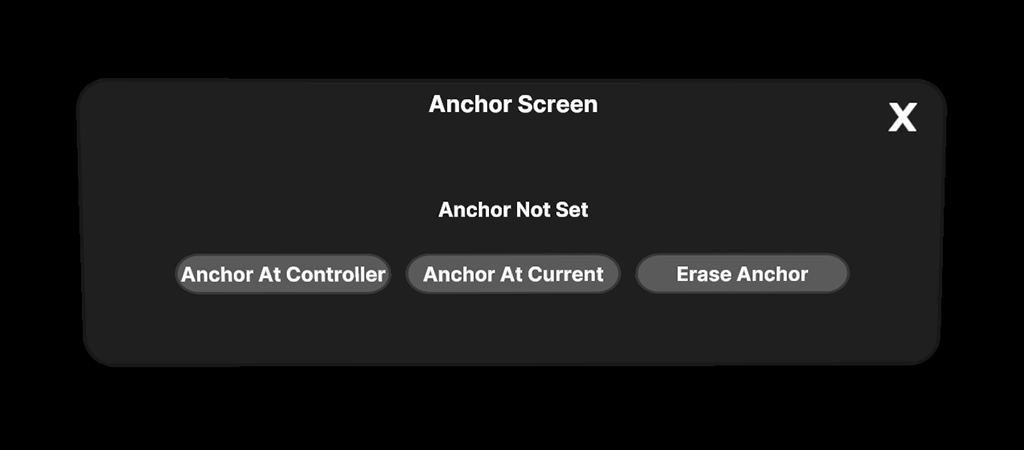
12. Anchor Settings
The Anchor Settings are part of the Scene Settings in 3D mode, and a
separate panel in 2D mode.
3D Mode
2D Mode
Screen Anchors
When the screen is anchored to a position, the screen becomes detached
from the rest of the user interface. This allows positioning the
screen in room space, while recentering the rest of the user interface
from any location in that space.
After the screen is anchored you can still make adjustments to the
distance, height, tilt and other settings.
Anchor At Controller
This will enter a special mode that can be used to position the screen
anywhere in space. Left or right handed tracking is initiated by
pressing the button with the hand you want to track. (3D Mode Only)
While in this mode, pressing up or down on the left joysticks changes
the distance of the screen from the controller, and pressing up or
down on the right joystick changes the scale. It can be useful to
minimize the distance and scale and physically touch the surface where
you want the screen, then scale it up after the anchor is set using
the sliders. Pressing X or A will set the anchor and leave the mode.
Anchor At Current
This will create an anchor at the current screen location. It may be
convenient to position the screen using the headset's orientation
using the grip trigger along with the screen position sliders, and
then lock it into place.
Erase Anchor
This will remove the anchor location and re-attach the screen to the
rest of the interface.
13. Scene Settings
The Scene Settings page controls the background and virtual scenery.
3D Mode
2D Mode
The first setting cycles through all of the available backgrounds. The
last item in the list is Passthrough, which shows the actual
environment from the cameras on the headset.
The second setting cycles through all of the virtual scenery.
Currently this includes a 3D couch, and a full 3D cinema room.
Backgrounds and scenery are independent and can be combined in any
way.
14. Screen Position Page
The Screen Position page has a number of sliders for controlling the
position, scale, tilt and curve of the screen.
3D Mode
2D Mode
The controls on this page will change depending on which projection
mode is being used. For instance the distance and height sliders are
not available with 360 degree projection which requires the screen to
be centered around the eye position.
In 180 degree projection modes the curve will change the curvature of
the half sphere which will affect the depth of the 3D effect.
15. Video Controls Page
The Video Controls page is used to control video playback.
3D Mode
2D Mode
Browser button
The Browser button is needed for hand tracking to open the browser.
With controllers it is preferable to use the controller B/Y buttons to
toggle the browser from any page.
Time
While a movie is playing, the current time and duration is displayed.
Drag the time slider to change the playback location.
Play Buttons
Fast forward and rewind buttons change the time by 15 seconds with
each press. There are also buttons for step frame, play, and pause.
Volume (3D Mode)
Drag the volume slider to adjust the volume.
16. Image Adjustments Page
The Image Adjustments page is used to change image properties like
gamma and saturation, and the background brightness.
3D Mode
2D Mode
The background setting also affects passthrough mode, so the real
environment can be dimmed while watching a movie while leaving lights
on for hand and controller tracking.
17. Viewing Mode Page
The viewing mode page lets you change the 3D mode and aspect ratio.
3D Mode
2D Mode
In Movie Deck all videos are decoded as 2D, but can be projected in
different ways.
2D - Normal image, same for both eyes
Side by side format - Left and right frames are
stored beside each other in the video. Movie Deck will split the width
in half and show each half in a different eye. Most 3D movies will be
stored in full (3840x1080) or half (1920x1080) side by side format and
both are supported.
Top / bottom format - Left and right frames are
stored vertically over each other in the video. Movie Deck will split
the height in half and show each half in a different eye.
180 SBS - Side by side format but the image is
projected on a half sphere giving you 180 degrees field of view.
360 TB - Top/bottom format projected on a full sphere
using equirectangular projection, giving you 360 degrees field of
view.
360 - 2D format projected on a full sphere using
equirectangular projection.
Movie Deck will automatically detect the viewing mode by looking for
the following strings inside the filenames:
"SBS" - 3D Side by Side format (full or half)
"H_OU" or "3D_OU" - 3D over under (full or half)
"180" - Side by side 180 degree projected on a half dome
"360" - Over under 360 degree projected on a full sphere
Aspect Ratio
The aspect ratio buttons allow you to change the aspect ratio of the
movie. These will only affect flat projection modes, not 180 or 360.
The default aspect ratio is calculated from the actual video
dimensions and adjusted for 3D if it is recognized as a 3D format.
18. Audio Settings Page
The audio settings page lets you change subtitle and audio tracks, and
the volume in 2D Mode.
3D Mode
2D Mode
Subtitles can be either embedded in the video file, or external using
the SRT format. External subtitles must have a language code in the
filename before the ".srt" extension. For example "moviename.en.srt"
for an English subtitle. You can use the Plex website to search and
download subtitles for movies, or place them in the same directory as
the movie file manually.
19. System Settings Page
The System Settings page contains general settings for the app.
3D Mode
2D Mode
Style
Show Panels will display solid flat panels under each page in 3D mode.
You can also switch between 2D and 3D user interfaces here.
User Interface Distance
The browser and controls distances have three options that control how
far away the top and bottom user interface sections are from your
eyes.
Debug Log
The debug log can be toggled here. The debug log is a panel that will
appear to the right of the browser. You can scroll the debug log up or
down by dragging inside in the panel.
Reset Defaults
To reset the sliders to the default values, press the "Reset All to
Default" button.
Switching Users
To switch users press the "Switch User" button. This will take you
back to the user selection panel and from there you can also log out.



 .
Accounts that require a pin to enter are marked with a lock icon
.
Accounts that require a pin to enter are marked with a lock icon  .
.